
_svg.png)
_svg.png)
_svg.png)
Choose A Theme
There are various pre-installed themes and templates when you first use PowerPoint. A theme is a slide layout with coordinated fonts, colors, and other visual elements like shadows and reflections.
1. Select New from the Ribbon's File tab, then pick a theme.
With four color options to pick from on the right side, PowerPoint displays a sample of the theme.
2. Choose a color variant and then click Create, or click Create.

Insert A New slide
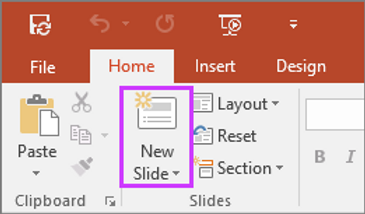
On the Home tab, click the bottom half of New Slide, and pick a slide layout.
Save your Presentation
1. Select Save from the File tab.
2. Choose or navigate to a folder.
3. Give your presentation a name in the File name box, then click Save.

Add Text
Choose a text placeholder, then start typing.

Format your Text
1. Choose the text.
2. Go to Drawing Tools and choose Format.

3. Choose one of these:
- Select Text Fill and then a color to alter the color of your text.
- Select Text Outline, then pick a new color to modify the color of your text's outline.
- Select Text Effects and then the desired effect to apply a shadow, reflection, glow, bevel, 3-D rotation, or transform.
Add Pictures
one of the following actions on the Insert tab:
-
Select Pictures, browse for the image, and then select Insert to add a photo that is stored on your local disk or an internal server.
-
Select Online Pictures and enter a search term to select an image to insert from the web.
After selecting a photo, click Insert.

Add Shapes
Shapes can be added to your slide's illustration.
1. Choose Shapes from the menu that displays after selecting the Insert tab's Shapes option.
2. Click and drag to create the shape in the slide area.
3. On the ribbon, choose the Format or Shape Format tab. To rapidly apply a color and style (including shading) to the chosen form, open the form Styles gallery.

Add Speakers Notes
When you don't jam in too much information, slides work best. You may add useful information and notes to the speaker notes and use them while you talk.
1. Click the Notes notes button in PowerPoint at the bottom of the window to see the notes pane.
2. Type your notes by clicking inside the Notes box that is located underneath the slide.

Give Your Presentation
Choose one of the following actions on the Slide Show tab:
1. Click From Beginning in the Start Slide Show group to begin the presentation on the first slide.
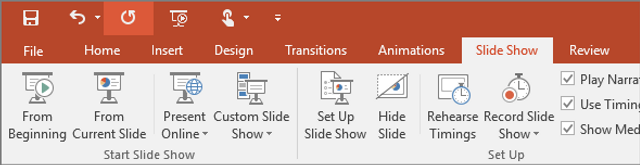
2. Click From Current Slide to begin where you are if you are not at the first slide.
3. Click Present Online to create a presentation on the web and then select one of the following choices if you need to present to individuals who are not present where you are:
-
To reach a distant audience, broadcast your PowerPoint presentation online.
-
As you present your slide show, refer to your speaker notes.
Get out the Slideshow
To get out of Slide Show view at any time, on the keyboard, press Esc.
Tips for creating an effective presentation
Consider the following tips to keep your audience interested.
Minimize the number of slides
To maintain a clear message and to keep your audience attentive and interested, keep the number of slides in your presentation to a minimum.
Choose an audience-friendly font size
The audience must be able to read your slides from a distance. Generally speaking, a font size smaller than 30 might be too difficult for the audience to see.
Use visuals to help express your message
Pictures, charts, graphs, and SmartArt graphics provide visual cues for your audience to remember. Add meaningful art to complement the text and messaging on your slides.
As with text, however, avoid including too many visual aids on your slide.
Make labels for charts and graphs understandable
Use only enough text to make label elements in a chart or graph comprehensible.
Apply subtle, consistent slide backgrounds
Select a design or theme that is attractive, dependable, and not overly attention-grabbing. Your message shouldn't be distracted by the background or design.
However, you should also offer a contrast between the color of the text and the backdrop. The default PowerPoint themes allow users to choose between a light backdrop and dark text or a dark background with light text.
Apply a theme to your presentation to add color and flair for more information on using themes.
Check the spelling and grammar
Always double-check your presentation's grammar and spelling to gain and keep your audience's respect.
<----- Click Here to learn more