


_svg.png)
Basic task for Google Docs
If you've heard of Google Docs, you're probably aware of its fantastic sharing tools and useful autosave. However, if you've never used Google Docs before, the sheer number of choices, templates, and sharing settings might be intimidating. You can become a Google Docs guru in no time if you follow these step-by-step instructions!
Use Google docs to make a text-based documents
Google Docs is an excellent location to draft documents similarly to how you would with a Microsoft Word document, as the name suggests. Additionally, since Google Docs are saved in the cloud rather than on your computer, you may use them to share your papers with others quickly and simply. Additionally, you will always have access to your Google Docs.
-
The best part is that Google Docs is absolutely free; all you need to log in with is a Google account.
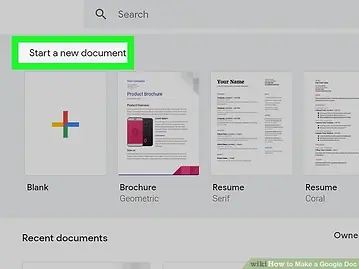
Pick which template you’d like to use based on your document
In addition to blank pages, Google Docs also offers a selection of letter templates, resume templates, project proposals, and a few others. No matter which template you select, you won't get bored because each one has a unique color scheme and layout.
-
Up until you find a template you like, you can experiment with a few other ones.

Let Google Docs autosave your document
There is no save button in Google Docs; instead, your computer automatically saves your work for you. You won't have to worry about losing any information if your computer crashes because your document will automatically store changes as you make them to your Google Drive[3].
-
By glancing up in the left-hand corner, you can see the autosave in action. You will be informed when the document has been saved to your Drive and when it is still saving.

<----- Click Here to learn more